 Clipwise
How to save highlights from web pages to Notion
You read an article, three sentences matter, and a week later you can't find them. The fix is to highlight while you read and have those highlights land in Notion with the page. Here are three ways to do that, from free to paid.
With Clipwise (free, no account)
best for: saving the article and your highlights into a Notion database in one go
- Install Clipwise and connect your Notion database. The setup guide takes about two minutes.
- On any article, select a sentence, right-click and choose Highlight with Clipwise. Or press Alt Shift H. The sentence turns yellow.
- Keep reading and highlight as much as you like. Closed the tab? Your highlights are kept on your computer until you save.
- Click the Clipwise icon and Save to Notion.
In Notion, the page starts with a Highlights heading and each highlight as a quote, followed by the full article, where the same sentences are still yellow. If your database has a text property with "Highlights" in its name, Clipwise fills that too, so you can see them in your table view.
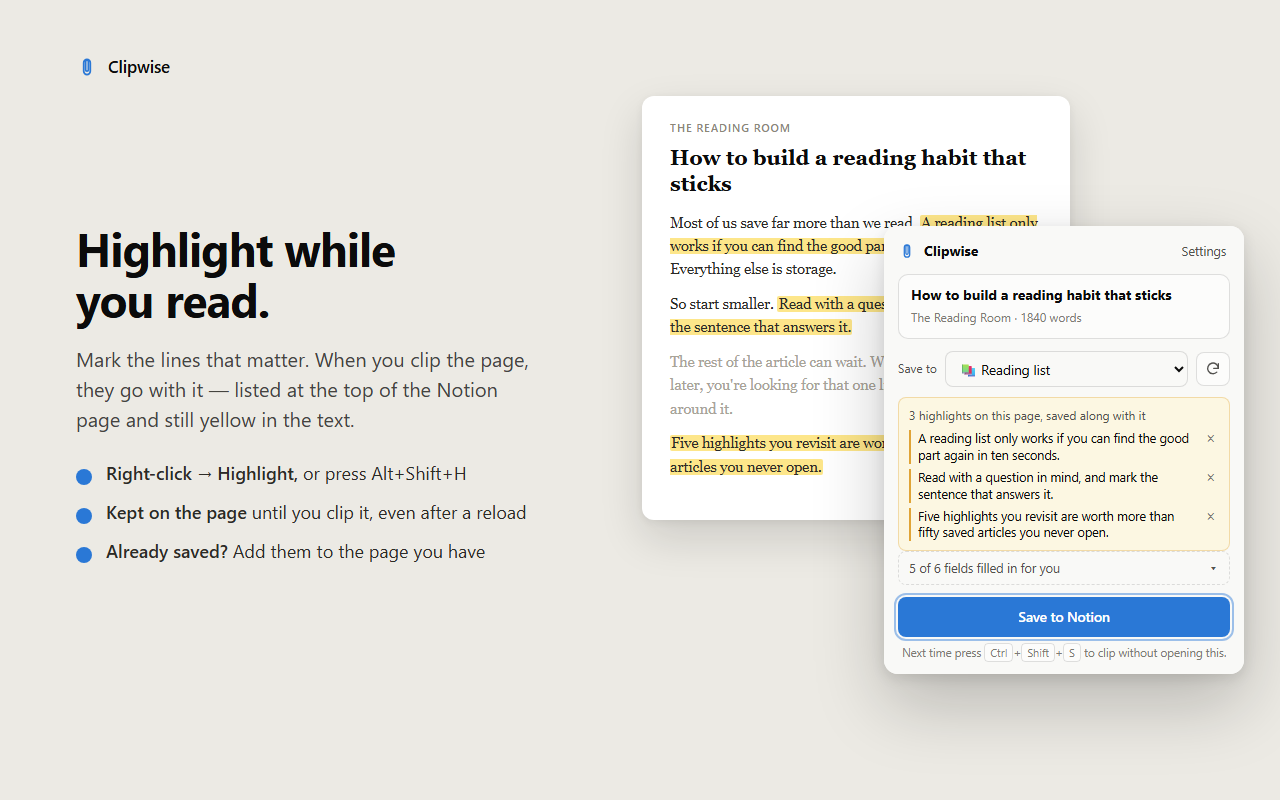
Already saved the page earlier? Highlight more, open Clipwise, and add the new highlights to the page you have instead of saving it twice.
By hand, with quote blocks
best for: the odd highlight, no extension at all
- Select the sentence on the page and copy it.
- In your Notion page, type
/quoteand paste it in. - Add the link to the article underneath, so you can find the context later.
It works, but it's slow, and after a few articles most people stop doing it. You also lose the article itself unless you save it separately.
With a read-later app that exports to Notion
best for: heavy readers who want a separate reading app
Apps like Readwise Reader are built around highlighting and can send your highlights to Notion. They're excellent, but they're paid subscriptions, and Notion becomes a place your highlights are copied to rather than where you save and read. If your reading already happens in Notion, that's an extra app in between.
Quick answers
Can the official Notion Web Clipper save highlights?
No. The official clipper saves the page, but it has no highlighting. You need a different extension or a read-later app for that.
How do I highlight text and save it to Notion for free?
With Clipwise: select text, right-click and choose Highlight with Clipwise (or press Alt+Shift+H), then save the page. The highlights go to the top of the Notion page as quotes. It is free and needs no account.
Do my highlights disappear if I close the tab?
Not with Clipwise. Highlights are stored on your own computer until you save the page, and they come back when you open the page and click the Clipwise icon.
Can I add highlights to a page I already saved to Notion?
Yes. Clipwise recognises pages that are already in your database. Highlight more on the article, open Clipwise, and add the new highlights to the existing Notion page.